Auto indexing
In the Auto Indexing tab, it is possible to define mappings that will be used for an automated filling of attribute values on document creation or editing. Such a mapping is based on a file type extension.
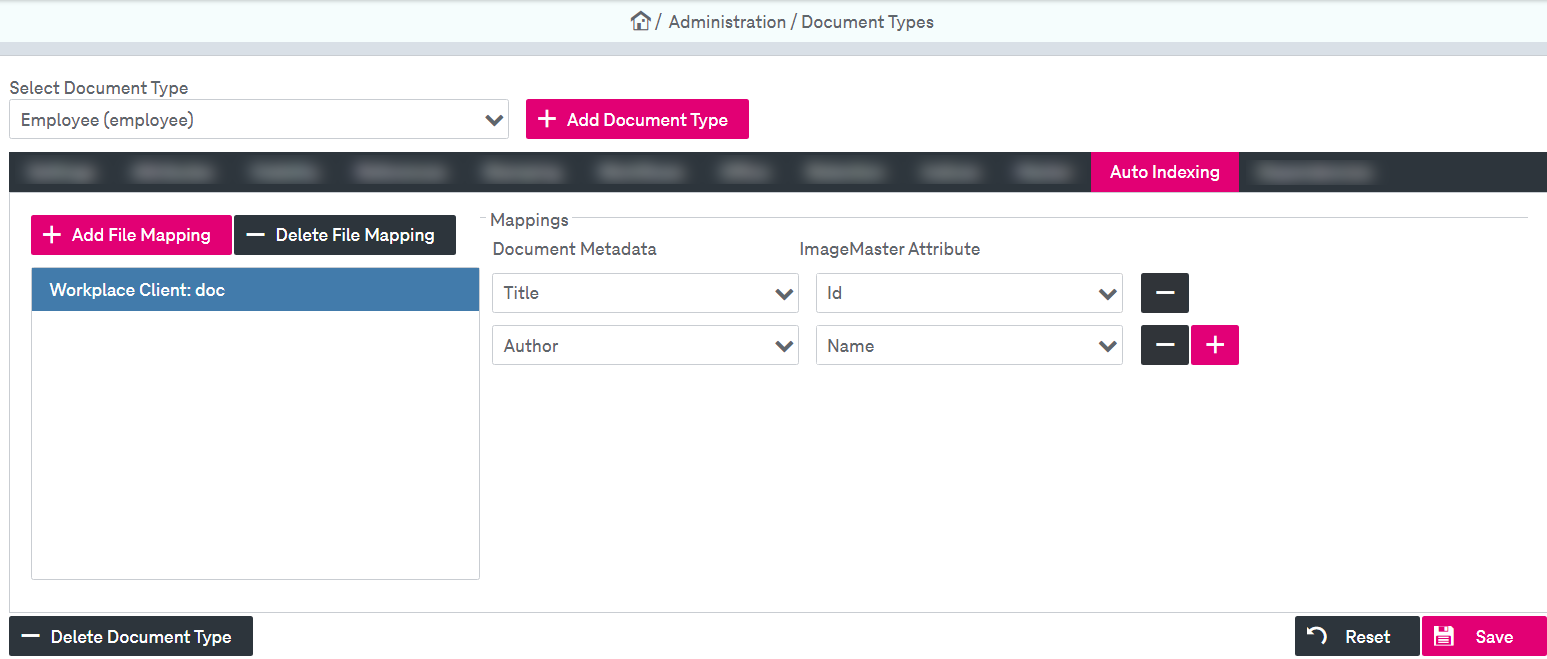
Figure 110: Document types – autoindexing
To configure a file mapping for the document type
-
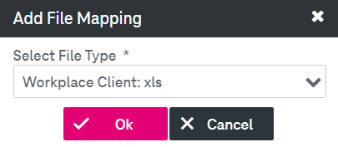
Click Add File Mapping; the window for creating a new file mapping will be displayed.
-
Select a file type from the list and click Ok.
-
The list contains all available file types that support auto indexing. The file type can be added once to the document type and will disappear from the list after a successful mapping.
-
Click
 near the Document Metadata label.
 -
You can now select available metadata for this file type and attributes (from the currently selected ImageMaster document type) from the lists. If you have just created a new document type, make sure that the attributes have already been set up, otherwise you cannot define any new mapping entry.
-
If you select the “msg” or “eml” file type, you can define Attachment Processing in the additional panel above the attribute mapping configuration panel.
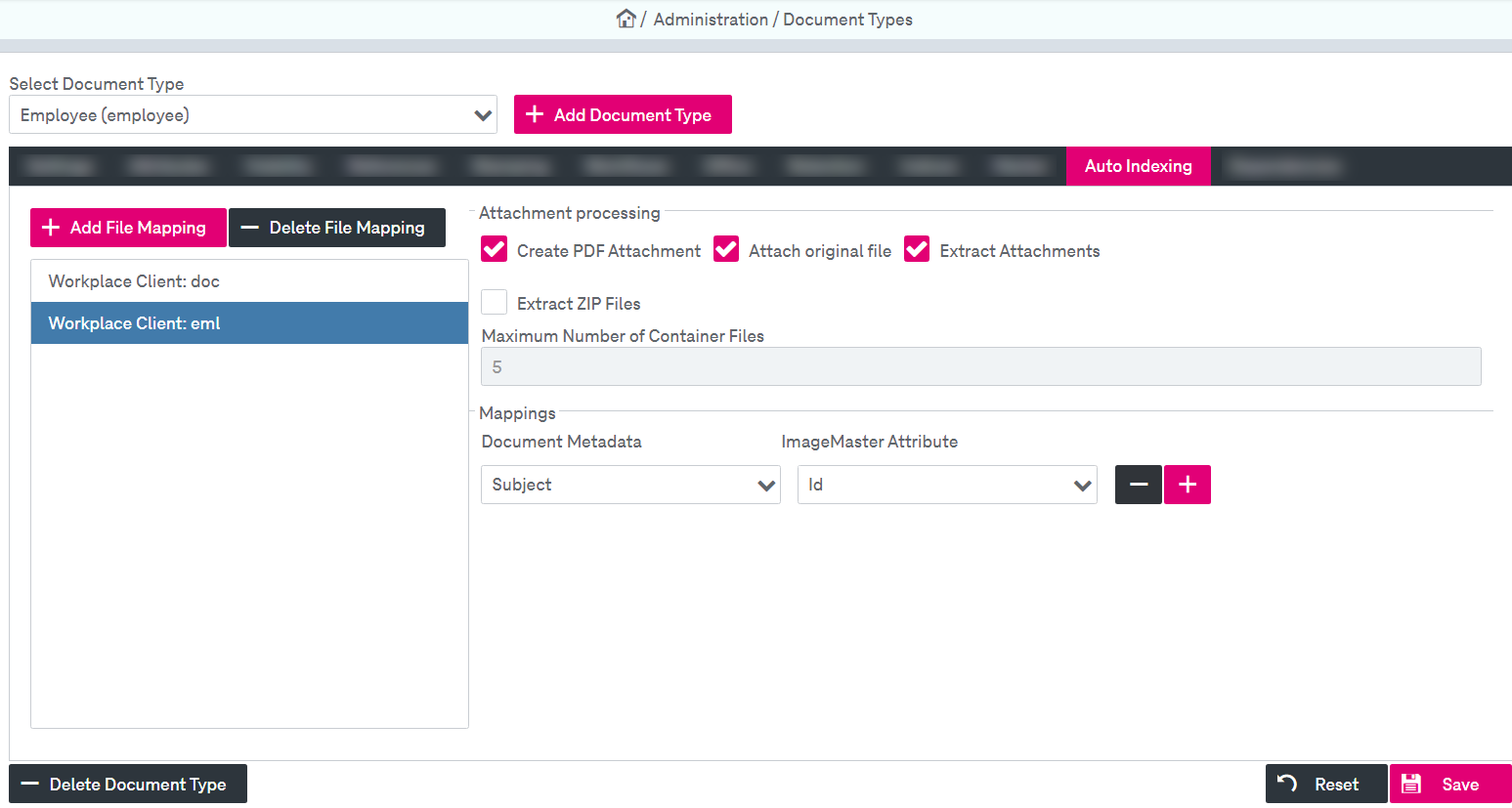
Figure 111: Document types – e-mail autoindexing
The following configuration parameters are available for attachments:
-
Create PDF Attachment: Activate this option to automatically create a PDF overview which includes:
-
e-mail details (sender, addressees, subject, body)
-
list of attachment names
-
-
Attach Original Mail:
Activate this option to transform metadata of the MSG file into ImageMaster document attributes and to add the whole MSG file to the ImageMaster document.
-
Extract Attachments:
Extract e-mail attachments and add them as separate ImageMaster attachments. This extraction is only done for the top level, so if an e-mail attachment itself is of a container type (like ZIP or MSG) this will be stored as is. For ZIP also see the alternative in the next point.
-
Extract ZIP Files (only possible if Extract Attachments is enabled):
Extract files from ZIP attachments to store as separate attachments. This extraction is only done for the top level up to a defined threshold (see option below).
-
Maximum Number of Container Files (can be configured if Extract ZIP Files is enabled):
Specify a threshold for the number of files to be extracted from a ZIP file. If the ZIP file contains more files, it is stored as is. Hidden files in a container are ignored and will not be counted.
-
-
To add another attribute mapping, click
 .
. The plus button is only available if there are still some attributes left for this document type which have not been mapped so far.
-
An attribute mapping can be deleted by clicking
 .
. -
For an OfficeClient configuration of attributes it is possible to disable editing the indexed attributes by the user. Select the box Editable By User to enable a modification of the mapped attributes.
-
Click Save.