Dependencies
In the Dependencies tab, it is possible to define dependencies between attributes of a document type. For the attributes with value sets, it is possible to define an attribute, whose specified value will filter the display of dependent attribute values.
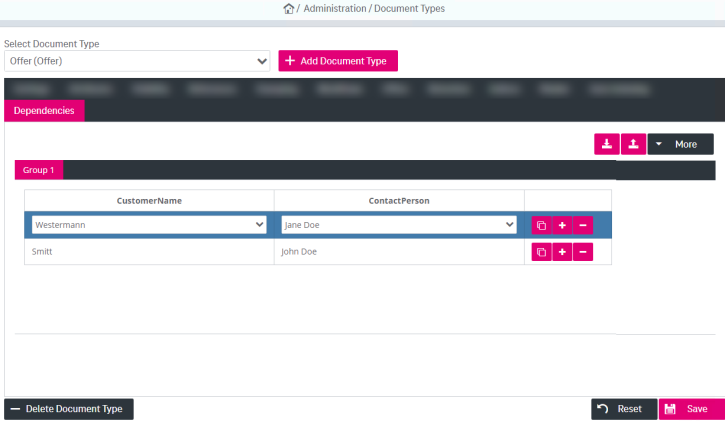
Figure 112: Document types – dependencies
The dependencies consider the following list of rules:
-
It is always possible to select an empty value for any attribute (no matter if it is mandatory or not).
-
One attribute can be used in different dependency tables, so the values of such attributes are calculated to meet the restrictions of all dependency tables they are used in.
The following actions are available:
-
add a new dependency group
-
remove active dependency group
-
delete all entries for a dependency group
-
import dependency group
-
export dependencies group
To add a new dependency group
-
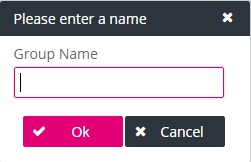
Click More and select Add Group. Enter the name of a new group in the creation dialog and click OK. The tab for the new group appears.
-
The Select Dependent Attributes dialog will be displayed for the created group:
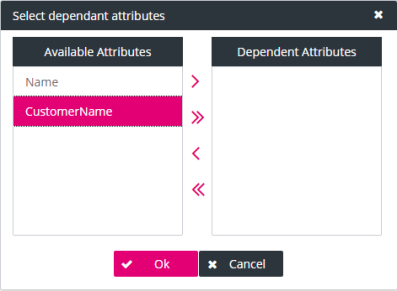
Figure 113: Document types – dependencies: select dependent attributes
-
Select dependent attributes from the list of Available Attributes by moving them one by one or all together with the help of the arrow buttons. You can specify dependent attributes for the current dependency group later by clicking Select Columns from the More menu. Click OK to save the changes.
The columns can be reordered using drag-and-drop functionality as long as no dependencies are entered (the dependency table is empty).
-
The dependent attribute will be added as a column in the dependencies table. Select Add Row from the More menu and select an attribute value from the list. You can copy, add or delete rows by using the corresponding icons for each row.
To remove an active dependency group
-
Select the group to be deleted by going to the corresponding tab.
-
Expand the More menu, select Remove Active Group and confirm the deletion in the dialog. The complete dependency group tab will be removed.
To delete all entries for an active dependency group
-
Expand the More menu, select Remove All Entries and confirm the deletion in the dialog.
-
All dependencies will be deleted for the currently selected dependency group.
To import a dependency group
-
Click
 “Import Dependencies Group from Excel” to import dependencies.
 -
The select file dialog appears:
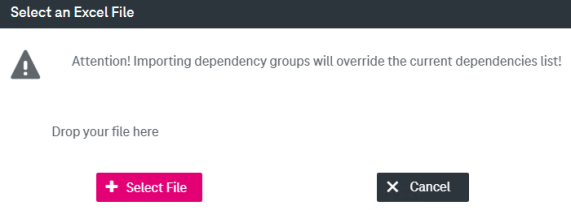
Figure 114: Document types – dependencies: import dependencies group
Note that the current dependency values will be overridden by the imported dependencies list.
-
Click Select File or use the drag-and-drop feature.
To export dependency group
-
Click
 “Export Dependency Group to Excel” to export the current dependencies list of the selected document type. The Export dialog is displayed: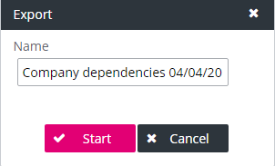
-
Optionally change the default name of the export file.
-
Click Start.
-
When the export is ready for download, the corresponding message appears:

-
Click the link to download the export.
-
Specify the directory where the export file will be saved.
The export is performed in the background, so you can continue your work while the export is in progress.