Groups layouts
It is possible to define several layouts for documents of each type for a specific user group (see Groups management for more details on user group configuration).
To configure the layout for a user group
-
Click Add Group. The dialog for group selection is opened:
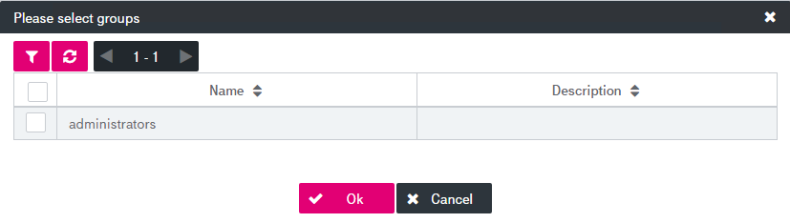
Figure 95: Document types – groups visibility
-
Select one or several groups from the list (general ImageMaster filtering is available) and click Ok. The groups will be added to the list.
- To delete a group, select it in the hit list and click Remove Group.
-
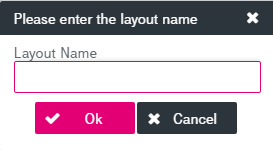
Click Add Layout to specify a new layout for the selected user group. A creation dialog is displayed:
-
Enter the name of the layout and click Ok. A new layout appears in the hit list.
-
You can specify multiple names for different languages by using the link Localize.
-
Adjust the layout parameters by selecting the corresponding check boxes for the attributes to be displayed. The layout determines the visibility and the order of the attributes.
-
To delete the layout, select it in the hit list and click Remove Layout.
-
Click Save to finalize the changes. The created layout is available on next login for the corresponding user group and has precedence over the default layout.