Rules
The Rules tab shows a summary of rules which are defined within the AdminClient.
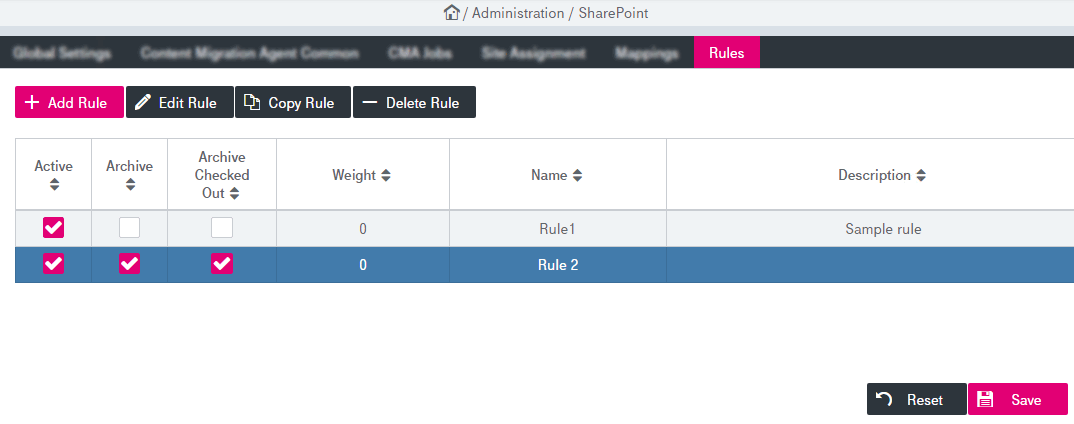
Figure 191: SharePoint – rules
You may perform the following actions with rules:
-
create a new rule
-
edit a rule
-
delete a rule
To add a new rule
Do one of the following:
-
Click Add Rule.
-
Alternatively, click Copy Rule to add a rule with the same values as the current rule.
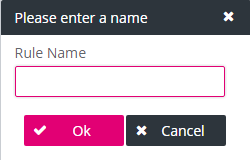
In any case a dialog appears where you have to enter a name for the rule:
-
Adjust the rule properties; see the section below on how to edit properties of a rule.
-
Click Save.
To edit a rule
-
Select a rule by clicking on it and click Edit Rule.
-
The Rule Editor window is displayed:
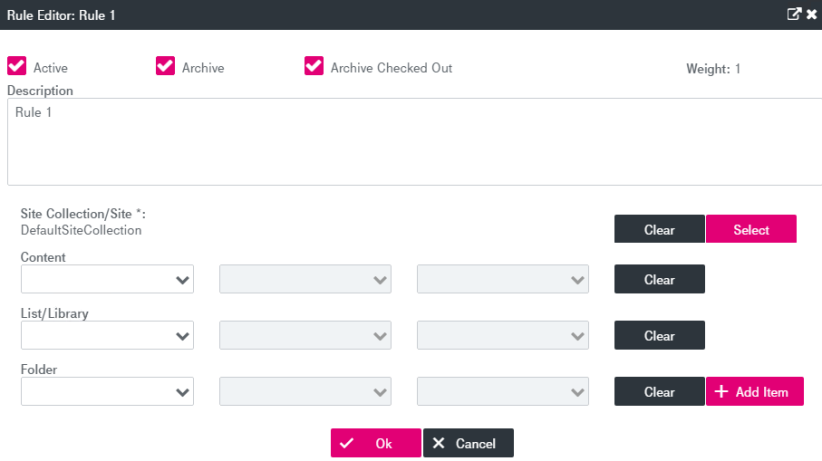
Figure 192: SharePoint – rules: rule editor
-
Expand the window by clicking
 to display full screen configuration view.
 -
Adjust fields as described below in SharePoint – rules parameters and click OK.
The rule name is displayed in the Rule Editor header and cannot be changed.
-
Click Save.
To delete a rule
-
Select a rule by clicking on it and click Delete Rule.
-
Confirm the deletion in the confirmation dialog.
-
Click Save.
The following table presents an overview of the rule properties and their meanings:
|
Parameter |
Description |
|---|---|
|
Active |
Enable or disable a rule for automatic rule processing. |
|
Archive |
Select the box to archive a document if the rule is fulfilled. If cleared, it prevents the selected item from archiving. |
|
Archive Checked Out |
Select the box to archive the checked out document. |
|
Weight |
The weight of a rule is calculated automatically based on actual rule content. |
|
Description |
The rule is described here. |
|
Attribute |
To define the Site Collection / Site parameter, click Select and specify the value from the list of available elements. To delete the specified parameter, click Clear. Only one value can be added to the following elements: Site Collection / Site, Content Type, List / Library, Folder. Multiple Item values can be added or deleted using the corresponding buttons Add Item / Clear. |
|
Operator |
Select Operator for the condition from the list, the following operators are available (depending on the attribute type): is equal, is not equal, contains, matches, less, less equals, greater, greater equals. |
|
Value |
Select value for the attribute from the list. |