Search settings
Search settings include properties with influence on the search behavior. Some of these settings represent default values that can be changed by a user.
Click the Operational Settings > Search tab to configure common settings for search. When completed, click Save to finalize.
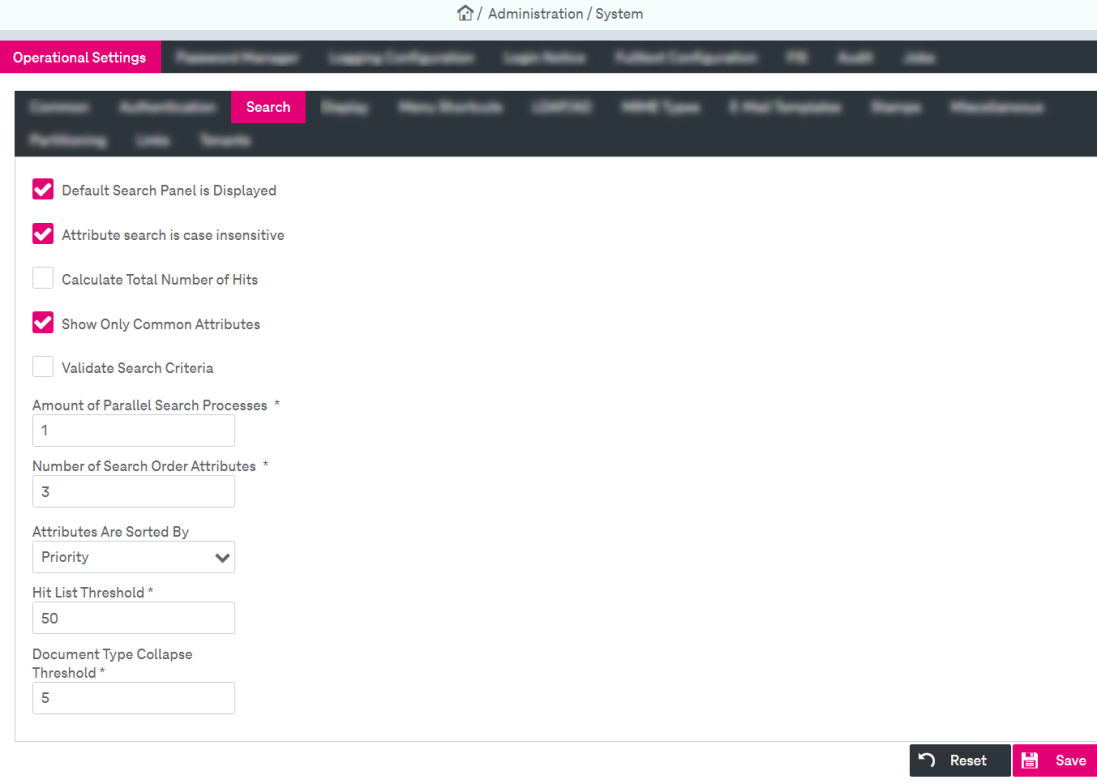
Figure 21: System – operational settings: search
The description of the parameters for search behavior is presented in the table below:
|
Parameter |
Description |
|---|---|
|
Default Search Panel is Displayed |
Select the box to hide a default search panel: if there is at least one personal search panel available, the default panel will not be displayed. To display again the hidden default search panel, clear the check box, then log off and log in again. |
|
Attribute search is case-insensitive |
Select the box (default) if you want to ignore upper and lower case in the spelling of words. |
|
Calculate Total Number of Hits |
Select the box to always calculate the total number of hits and to display this number in the hit list. The default state is unchecked, i.e. calculation will NOT be performed in order to optimize the performance. The total number calculation is not supported in full-text hit lists. |
|
Show Only Common Attributes |
Select the box (default) to display only common for at least 2 document types attributes. If disabled, all attributes indexes will be displayed in the search criteria panel. |
|
Validate Search Criteria |
Select the box to perform validation of the search data prior to displaying the results. |
|
Amount of Parallel Search Processes |
Enter the number of search processes that can be executed in parallel. The default value is “1”. |
|
Number of Search Order Attributes |
Enter the maximum number of attributes that can be specified for the initial order before the search is started. The default value is “3”. |
|
Attributes are Sorted By |
Select one of the values to define sorting of the attributes:
The user can change this setting in the corresponding panels. |
|
Hit List Threshold |
Enter the number of documents that will be initially loaded when showing the hit list, i.e. the number of results per page. A value of “0” means that no threshold is set at all and the list will be displayed completely. The default value is “50”. It is recommended keeping the default unless your system provider suggests another value, which may better fit your specific needs. Small threshold values reduce the average system load caused by search. However, very small values are inconvenient because this may force users to always browse through several pages in the list for identifying the desired hit. A high value, in contrast, increases average system load, since all result items must be transferred from the server to the Web client before the list is displayed. In extreme cases, a user may get the impression that the application has frozen, although in fact results are still being transferred. |
|
Document Type Collapse Threshold |
Enter the number of document types that will be displayed in separate tabs when showing the hit list. If the number of document types in the search result exceeds the specified value, the document types will be displayed in the expandable list. The default value is “5”. |
|
Table 3: Operational settings – search parameters |
|