Each mapping may be one of two types:
-
Outbound – migrating metadata from SharePoint to ImageMaster (default)
-
Inbound – migrating metadata from ImageMaster to SharePoint
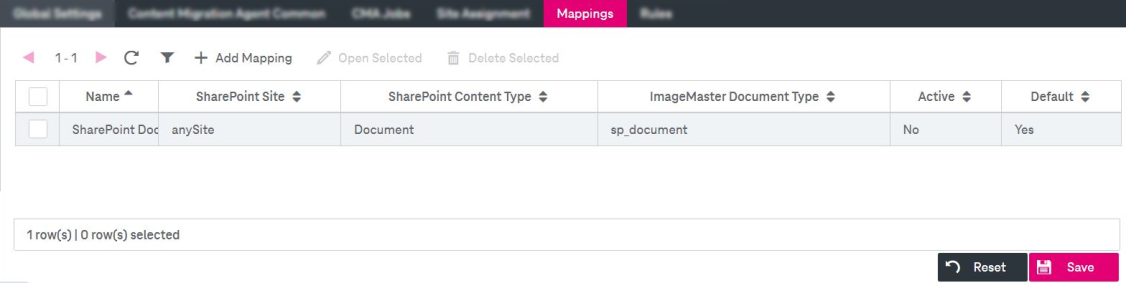
Figure 191: SharePoint – mappings
A default mapping SharePoint Documents is created during the installation. It is always present and cannot be changed or removed. It defines a mapping between the ImageMaster system document type “SharePointDocument”, which is created by the installer, and the default SharePoint content type “Document”.
You may perform the following actions with mappings:
-
create
-
edit
-
delete
To add a new mapping
-
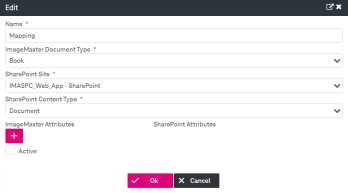
Click Add Mapping. The creation dialog is displayed:
-
Specify the mapping name and select ImageMaster Document Type, SharePoint Site, SharePoint Content Type. Click OK.
-
After closing the dialog, a tab with the specified name will appear in the mappings pane.
-
Adjust fields as described below.
It is possible to define several mappings for one and the same document type.
-
Click Save.
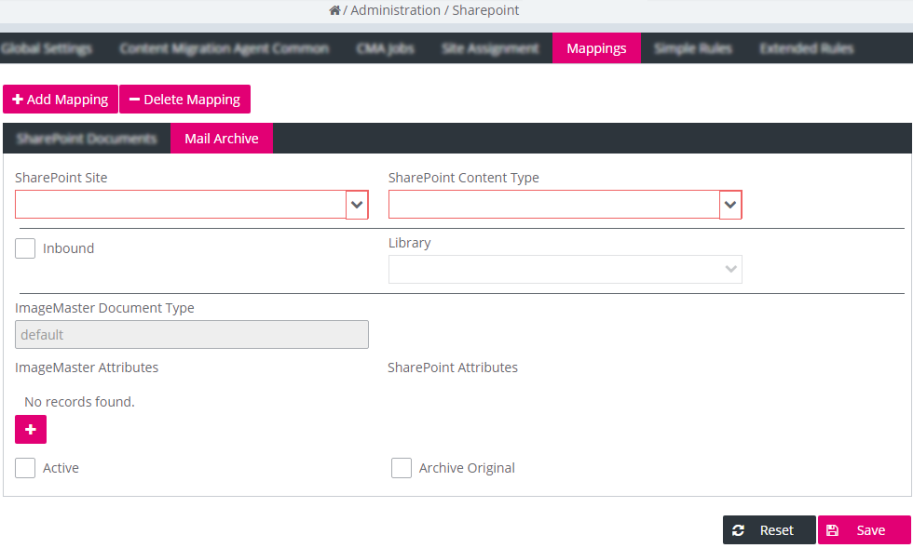
To edit a custom mapping
For descriptions of mapping properties, see table SharePoint – mapping settings below.
-
Click the desired mapping tab.
-
Optionally, select new values from the SharePoint Site and SharePoint Content Type lists to change default values.
-
For an inbound type of mapping (from ImageMaster to SharePoint), select the Inbound check box. The Library list becomes enabled. Select the value of SharePoint library that will be used to store documents from ImageMaster.
-
Specify attributes for the mapping:
To set a mapping, corresponding pairs of attributes must be defined: ImageMaster Attributes and SharePoint Attributes which represent a mapping between ImageMaster document type attributes and attributes of the selected SharePoint content type.
To add a new attribute pair, click
 . Select required attributes from the corresponding lists. To remove a previously created pair of attributes, click
  .
.In case of an outbound mapping, all mandatory attributes are added automatically.
Each attribute should be used in one mapping only. It is impossible to map values from two different attributes on one side to a single attribute on the other side.
-
It is possible to activate / deactivate a mapping. By default, a mapping is deactivated after creation. Thus, the respective check box is cleared. To activate the mapping, select the check box Active.
-
Specify whether the original will be archived. Select the corresponding check box.
-
Click Save.
A type check of the specified attributes will be performed when saving the configuration. A warning message appears if two attributes that are mapped have different types. However, the configuration can be saved even if types do not match.
To delete a mapping
-
Click Delete Mapping and confirm.
-
Click Save.
The following table presents an overview of the mapping properties (see SharePoint – mappings: settings) and their meanings:
|
Parameter |
Description |
|---|---|
|
SharePoint Site |
The site that will be used for migration A list of available sites is provided by the Content Migration Agent (CMA) web service. |
|
SharePoint Content Type |
The content type that should be used A list of available types is provided by the CMA web service after selection of the site. |
|
Inbound / Outbound |
Select the check box if the mapping will be used for an inbound migration. |
|
Library |
Only enabled for inbound mapping Specifies the SharePoint Library where documents from ImageMaster should be stored. A list of libraries is provided by the CMA web service. |
|
ImageMaster Document Type |
The ImageMaster document type defined for the selected Content Type during mapping creation The field is disabled for editing. |
|
ImageMaster Attributes |
List of the ImageMaster attributes defined for the selected Content Type |
|
SharePoint Attributes |
List of the SharePoint attributes defined for the selected Content Type Each attribute should be used in one mapping only. It is impossible to map values from two different attributes on one side to a single attribute on the other side. |
|
Active |
Select the check box to activate the mapping. By default, a mapping is deactivated after creation. |
|
Archive Originals |
Select the check box to enable archiving of the original documents. |