ImageMaster Business Process Management allows a workflow configuration per document type via the AdminClient. The scope of settings in the ImageMaster AdminClient is restricted to the interaction with documents. For example, you can specify different kinds of triggers that start a workflow (like manual start, on document creation or on document update).
The AdminClient is not used to customize a workflow in terms of specifying a process definition. To design the actual model with a flow sequence that consists of single tasks, a separate web application based on a third-party product is integrated into ImageMaster.
The administration room described below is only accessible in a customized environment, if the Workflow module has been licensed and installed.
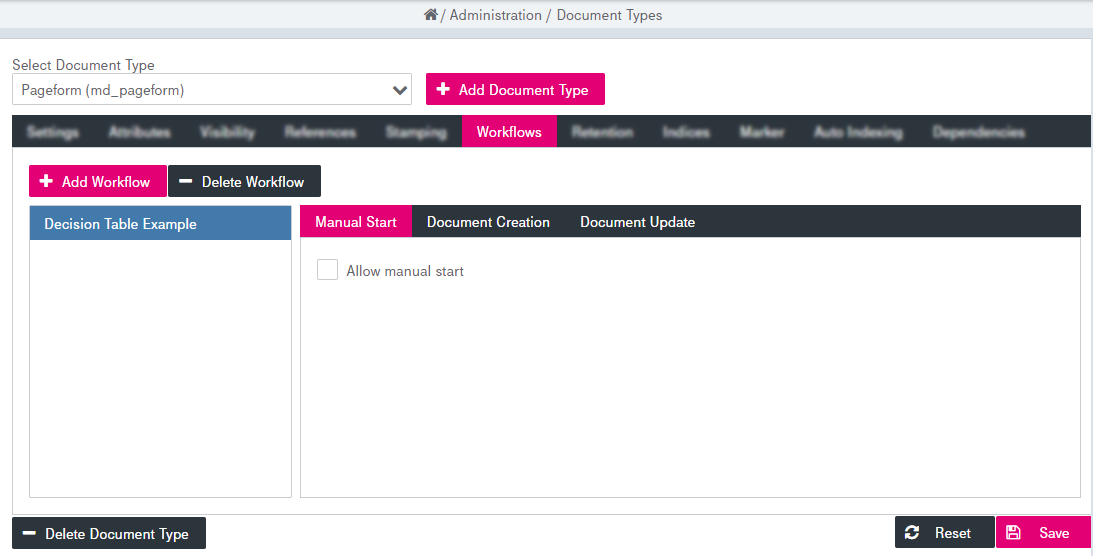
Click the Workflow tab to display the list of workflows for the document type selected in the Select Document Type list. The list box in the left area contains already defined workflows for the current document type.
You can invoke the following actions with the workflows related to a selected document type:
-
add a workflow
-
delete a workflow
-
modify the workflow
- define conditions
To add a workflow
-
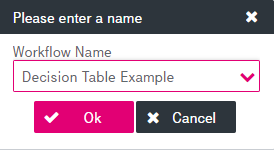
Click Add Workflow. A workflow creation dialog is displayed:
-
Select the workflow from the list of predefined workflows and click OK. The new workflow appears in the hit list.
-
Adjust the workflow properties – see the section below.
- Click Save to complete the changes.
To delete a workflow
-
Select the workflow to be deleted in the list box.
-
Click Delete Workflow beneath the list and confirm.
-
Click Save to complete the deletion.
To modify the workflow
-
Select the workflow to be changed in the list box.
-
Adjust the workflow properties on the subtabs in the right-hand area:
-
Manual Start:
-
Select Allow Manual Start to enable a manual start of a workflow from the WorkplaceClient. For related details see [UM WorkplaceClient].
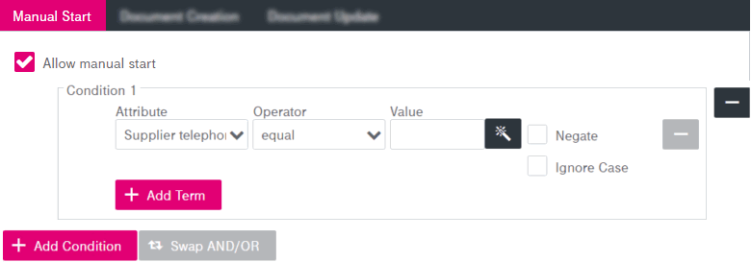
Figure 107: Document types – workflows: manual start
-
Optionally, define the conditions in the condition builder. See section To define a condition.
-
-
Document Creation:
-
Select Start when document is created to enable the start of a workflow on document creation.
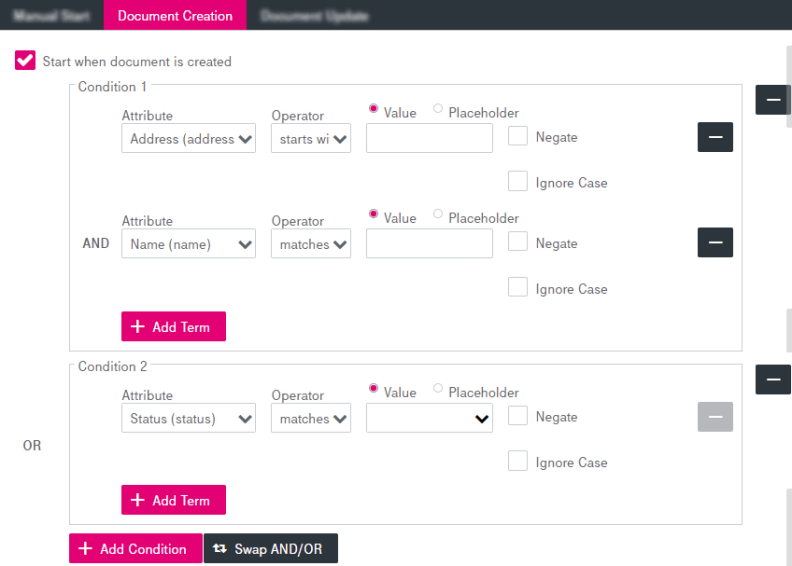
Figure 108: Document types – workflows: document creation
-
Optionally, define the conditions in the condition builder. See section To define a condition.
-
-
Document Update:
-
Select Start when document is updated to enable starting of workflow for a document on document update.
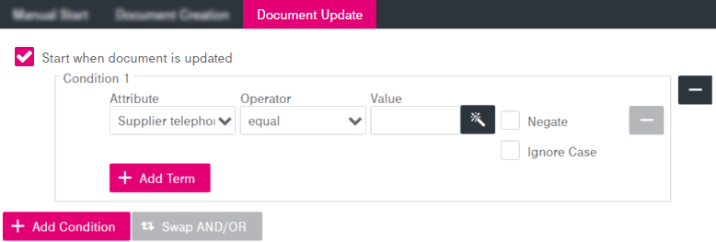
Figure 109: Document types – workflows: document update
-
Optionally, define the conditions in the appeared condition builder. See section To define a condition.
-
-
-
Click Save to complete your changes.
You have the possibility to create, edit, and remove conditions for enabled workflows for each document type. The condition builder allows the visual definition of a workflow process for a document type based on certain attribute values.
-
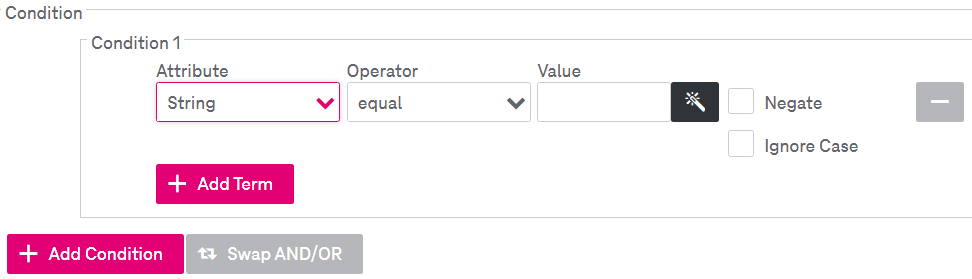
Click Add Condition. The condition builder panel will be displayed:
-
Select an attribute of the specified document type from the list. Hidden attributes are not available.
-
Specify search criteria by choosing a comparison operator and setting your desired values.
The available comparison operators depend on the selected attribute type.
-
Optional:
-
 Select Placeholder
Click the icon to specify the placeholder for the attributes. The option is supported for the attribute types "date/ dateTime" and "string". Select the available options in the appeared window and click OK:
-
Negate
Select the box to apply the logical operator "not" to the whole condition. The negated condition effects the opposite truth value.
-
Ignore Case
By default the search is case-sensitive. Select the box to deactivate case-sensitive search.
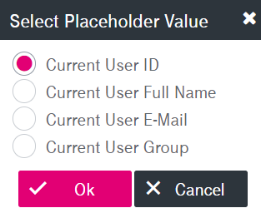
The specified value will be set as a placeholder for the corresponding attribute.
-
-
Optional: Add further search terms by clicking Add Term:
-
Terms can be connected by Boolean operators “and” (default) as well as “or”. By default, each term connected with “and” further reduces the result set. To change the connection, click Swap AND/OR.
-
Connection operators are evaluated in order of appearance.
-
-
To delete the term, click the minus icon nearby.
-
Optional: Click Add Condition to specify additional conditions.
Conditions can be connected by Boolean operators “or” (default) as well as “and”. By default, conditions connected by "or" retrieve results that match any condition. To change the connection, click Swap AND/OR.
-
To delete the condition, click the minus icon nearby.
If the selected document type contains no attributes, the condition can not be configured and the functionality is disabled.