Signatures guarantee the integrity of content objects of revisions as soon as they are stored in the archive.
Each content object, which is stored in ImageMaster and passes configurable filters, will be signed. Open the Signature tab and expand the panel Signing to configure the filters.
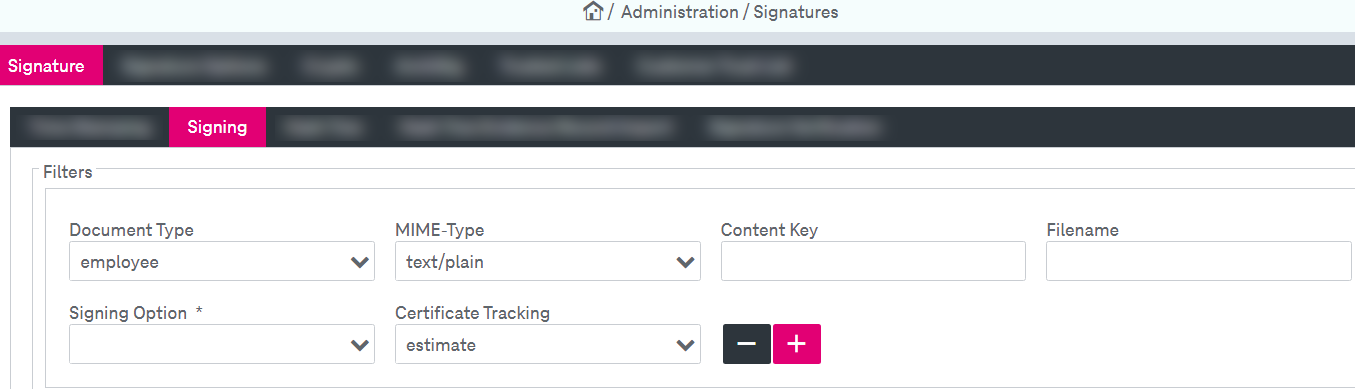
Figure 210: Signatures – signature: signing
To configure signing functionality
-
Click
 to add a filter.
 -
Specify the configuration parameters for the filter functionality:
-
Document type: Select the desired value from the list of the currently existing document types.
-
MIME-Type: Select the desired value from the list of the currently existing MIME types.
-
Content Key: Enter the key pattern that is used to filter the content.
-
Filename: Enter the filename pattern that is used to filter the content.
-
Signing Options: Select the option from the list of available options, configured in Signing options.
-
Certificate Tracking: Select the mode for contents which matches the filter to track used certificates.
The following options are available:
-
off: Certificate tracking is disabled.
-
register: Certificates are registered.
-
estimate: The certificate usages are estimated.
-
statistics: Accurate statistics for the certificate usages are collected.
-
-
-
The filter component allows creating multiple filter entries by clicking the “plus” icon at the end of each row. To delete the filter set, click the “minus” icon.
-
When ready, click Save to complete the settings.