AI chat
The AI Chat function allows users to interact with ImageMaster through a Large Language Model (LLM) and ask questions related to selected documents or attachments.
It provides contextual assistance for document analysis, summaries, and content-related queries directly within the WorkplaceClient interface.
This feature is available for users with a valid AI license and if the system administrator has configured an active AI Service .
AI chat can be started from any workspace where documents are displayed, for example from the Search or Documents view.
-
Select one or more documents in the hit list.
-
Click the AI Chat icon in the functional bar:

-
The ImageMaster AI Chat window opens in a new panel on the right side of the screen. It automatically displays the current timestamp in the window title:
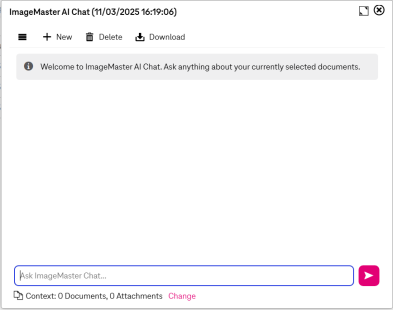
Figure 858: AI chat window
-
When a question is submitted, ImageMaster sends the request to the configured AI backend using the context of the selected documents:
-
Questions can be entered in natural language, e.g. “What are the key dates and amounts mentioned?”, “List the persons or companies referenced in the document.” or “Provide a short version suitable for an e-mail message.”
To ensure consistent results, system administrators can define a default system prompt and model parameters, see [UM AdminClient].
-
Answers are displayed directly in the chat window.
-
-
The Context line below the input field indicates how many documents and attachments are currently referenced (for example: Context: 3 Documents, 3 Attachments).
New documents or attachments can be added from the hit list action Documents → Add to AI Chat Context.
If no document is selected, the context line shows 0 Documents, 0 Attachments and queries are answered based only on general system context.
Clicking Change next to the context opens a selection dialog to adjust or clear the active context:
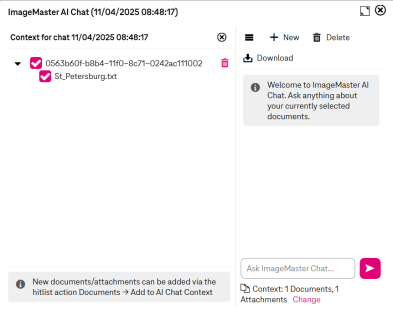
Figure 859: AI chat window with context for chat
-
The history of all active chat sessions is displayed when clicking the tribar menu in the upper functional panel. The following options are available for managing chats:
-
New : creates a new chat session. The previous chat remains accessible until closed manually. Each new session opens with the current date and time in the title.
-
Delete : removes the currently open chat session from the list. This action permanently deletes the session from the client view.
-
Download : exports the current chat content as a text file. The file includes all user inputs and AI responses.
-