Mark an attachments as primary
A primary attachment is displayed first in the attachment list and is used as the document thumbnail.
If no primary attachment is set, the first file in alphabetical order is used.
You can mark an attachment as primary in two ways:
Mark attachment as primary from attachment list view
-
In Document view, click the plus (+) icon to open the Attachment List.
-
Switch to edit mode (Document → Edit).
-
Tick the box Select as primary attachment next to the desired file.
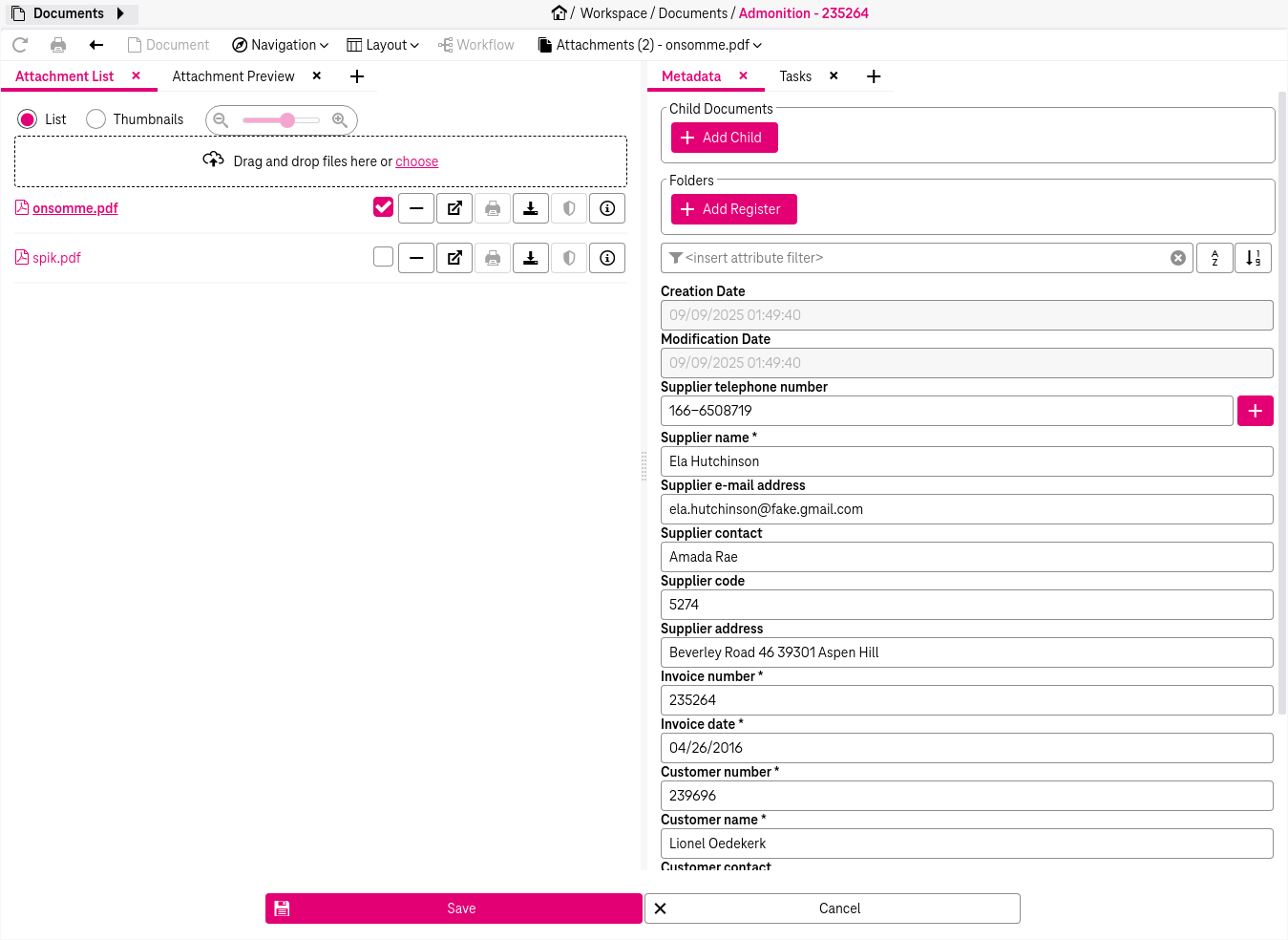
Figure 924: Mark attachment as primary
-
Click Save. The file is marked as the primary attachment:
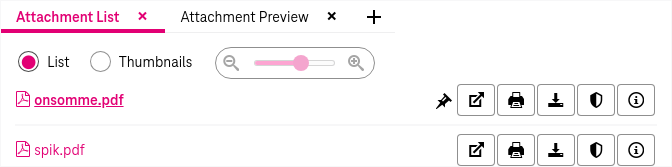
Figure 925: Primary attachment marker
Mark attachment as primary from attachment preview
-
Open the document and go to Attachment Preview.
-
Switch to edit mode (Document → Edit).
-
Open the three dots menu (⋮) on the selected file:
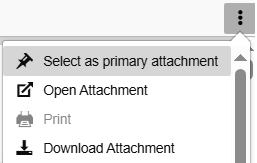
Figure 926: Select primary attachment from attachment preview
-
Click Select as primary attachment.
-
Click Save to complete your changes. The corresponding marking is displayed for the primary attachment:

Figure 927: Primary attachment marker