Configuring a reference
Let us consider an example of linking a document type “Offer” (also denoted as a detail document) to an existing master document type “Customer” via attributes. For more information about referencing attributes, see chapter References configuration.
Preconditions
-
A document type “Customer” has been created and saved! To create such a document type that matches this scenario, follow the instructions from the chapter Typical steps when creating a document type and create the attributes from the following step.
-
The “Customer” document type contains the following attributes:
-
“CustomerID” configured as a single-value attribute used as link
-
“Name” and “Phone” referenced from the detail document type
-
Steps to create a reference
-
Create and configure a detail document type:
-
Create a new document type “Offer” that will serve as a detail document type.
-
Click the Attributes tab and add an attribute “Applicant” that will be used for connection with the attribute “CustomerID” from master document type. This new attribute must be of the same type as “CustomerID” and also “single-value”.
Do not save your changes right now because this would prevent the configuration of references! (Only if you are not intending to use references, you may perform the step Save at any moment in between the process of a document type creation.)
-
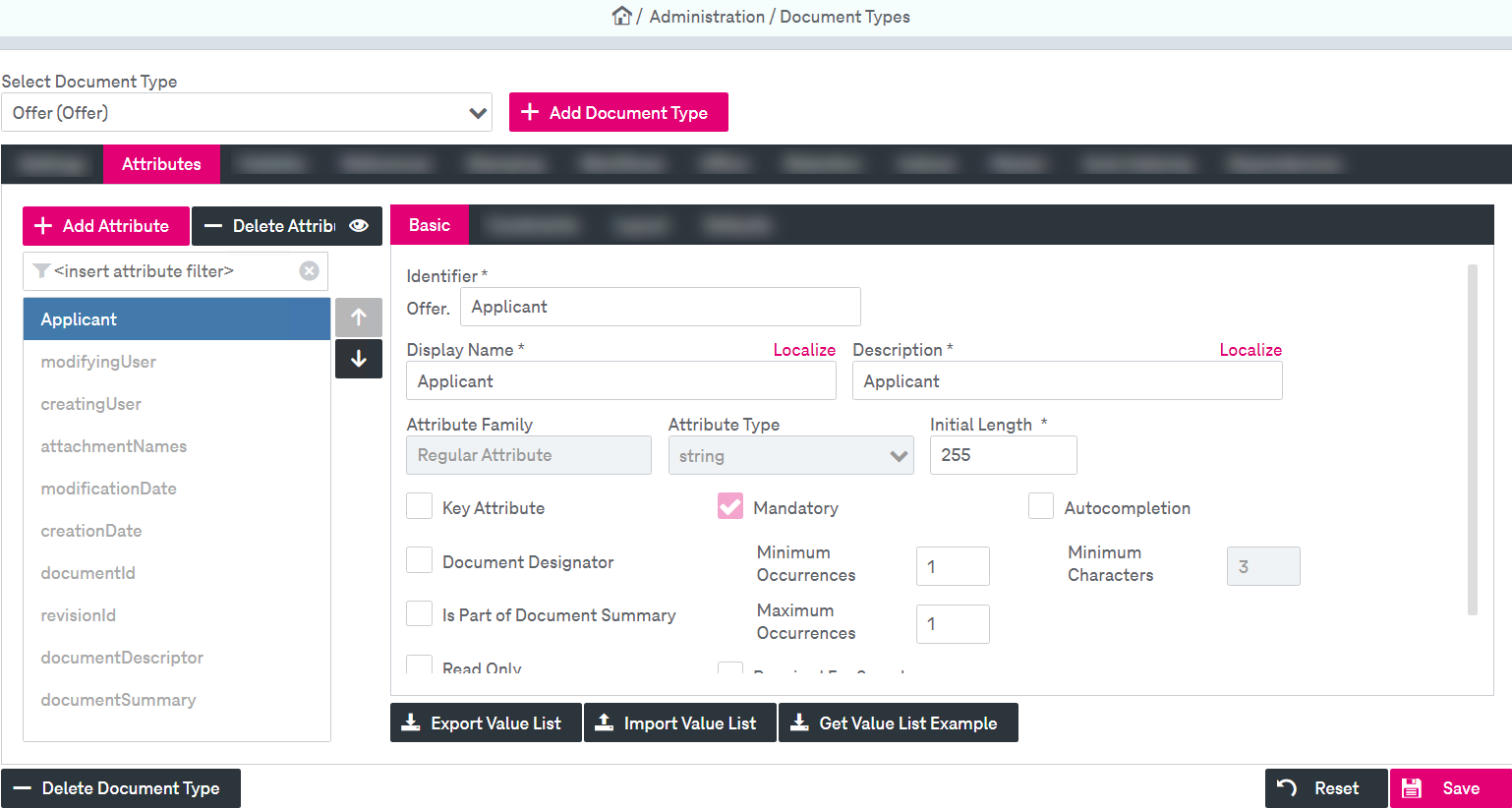
Figure 286: Cookbook – creating document type: attribute for referencing
-
Compose the assigned list of master document types:
-
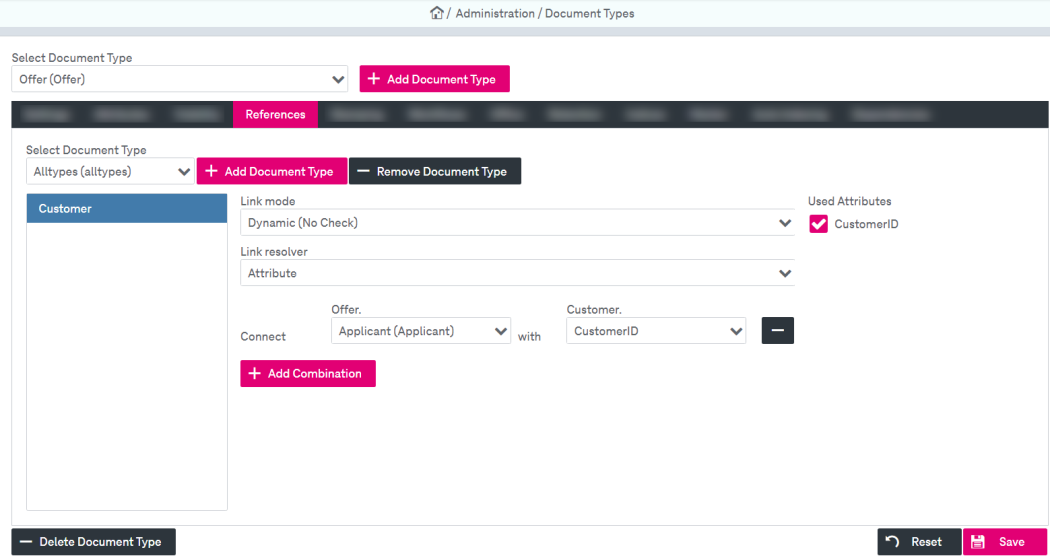
Click the References tab, see Cookbook – creating document type: referencing below.
-
In the Select Document Type list located inside the References tab, select the master document type “Customer”.
-
Click Add Document Type. The document type “Customers” appears in the list box.
It is allowed to add more document types to the list box in order to link the current detail document type to several master document types. Use Add Document Type and Remove Document Type to compose the list of master document types.
-
-
Configure the connections between the attributes for all linked document types:
-
From the Link Resolver list, select the “Attribute” resolver to configure a reference via the attribute.
-
Click Add Combination and in the Connect list for the current detail document type “Offer”, select the attribute “Applicant” that is used as the source for referencing.
-
In the with list for the referencing document type Customers, select the attribute of the master document type “CustomerID” that will be referenced as target.
-
-
Specify the used attributes:
-
On the Used Attributes panel, select the attributes of the master type “Customers” which will be substituted as referenced attributes for the detail document type “Offer”: “CustomerID”, “Name” and “Phone”.
-
If you now open the Attributes tab for current document type “Offer” (still not saved), you can see that the attribute list has been extended by the target attributes from the master document type: “Customers.CustomerID”, “Customers.Name” and “Customers.Phone” displayed in bold.
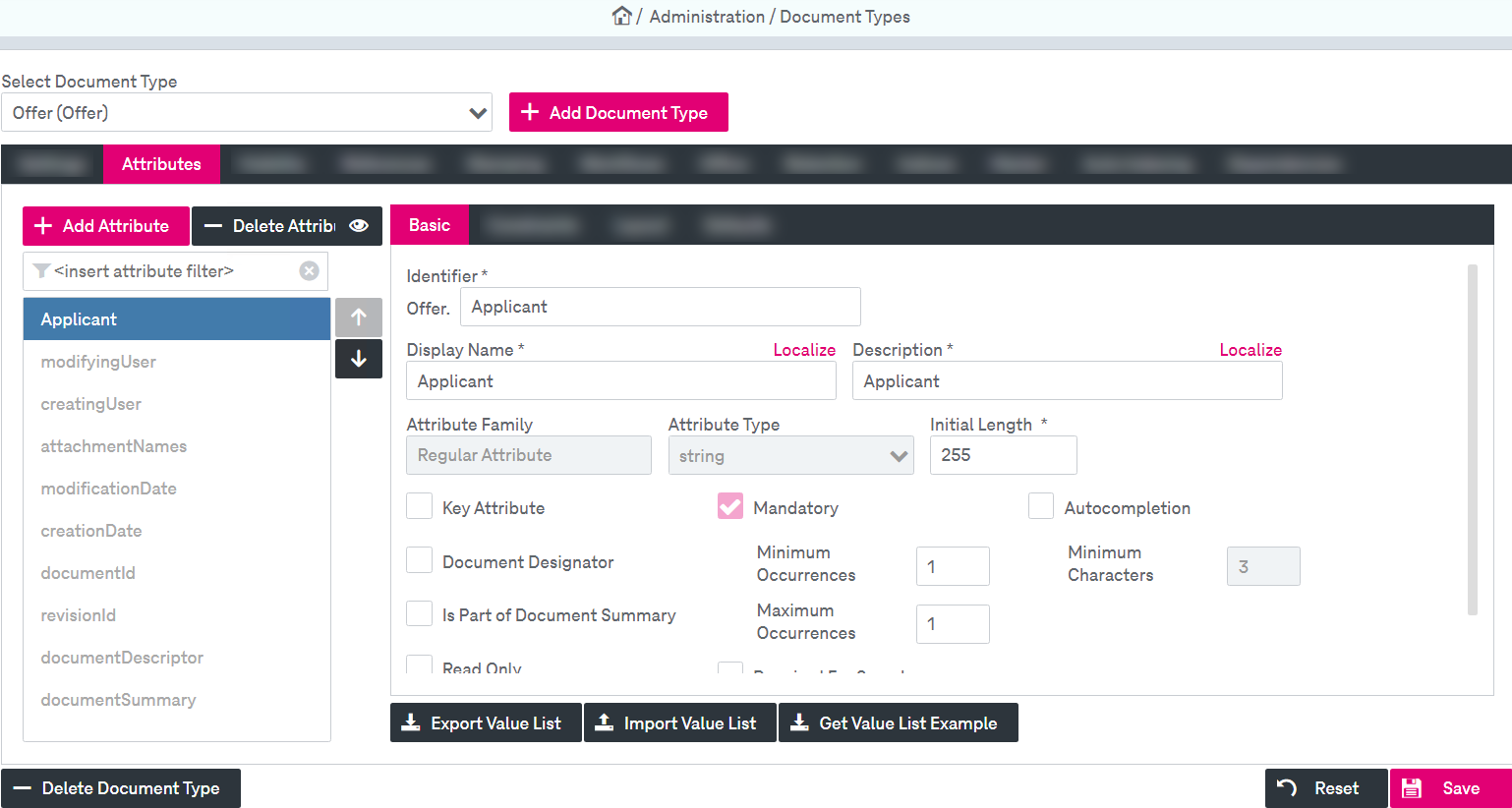
Figure 288: Cookbook – creating document type: attributes after references configuration
-
-
Save the configuration:
-
Click Save (for the first time after having begun to create the detail document type!).
Now the References tab will be disabled for the document type “Offers”. For technical reasons it is not possible to modify or add new references to the just created detail document type.
-