Document type indices
In the Indices tab it is possible to view the existing indexes and add or delete indexes for the currently selected document type. Indexes are defined to speed up searches involving selected attributes.
Note that it is not possible to create an index involving an attribute of the type “Text” or a linked attribute.
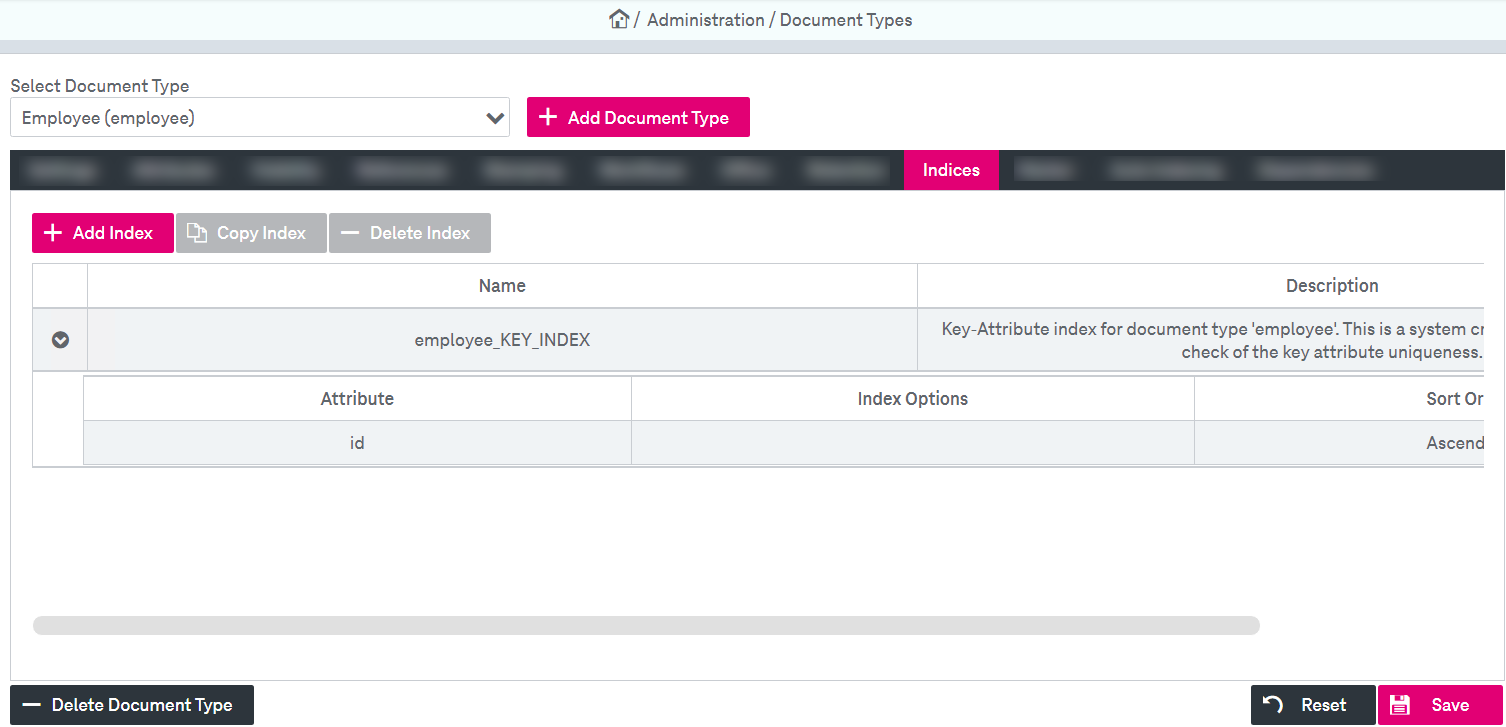
Figure 105: Document types – indices
You may do the following actions with indexes:
-
create a new index
-
delete an index
To create a new index:
-
Click Add Index; an index creation dialog is displayed.
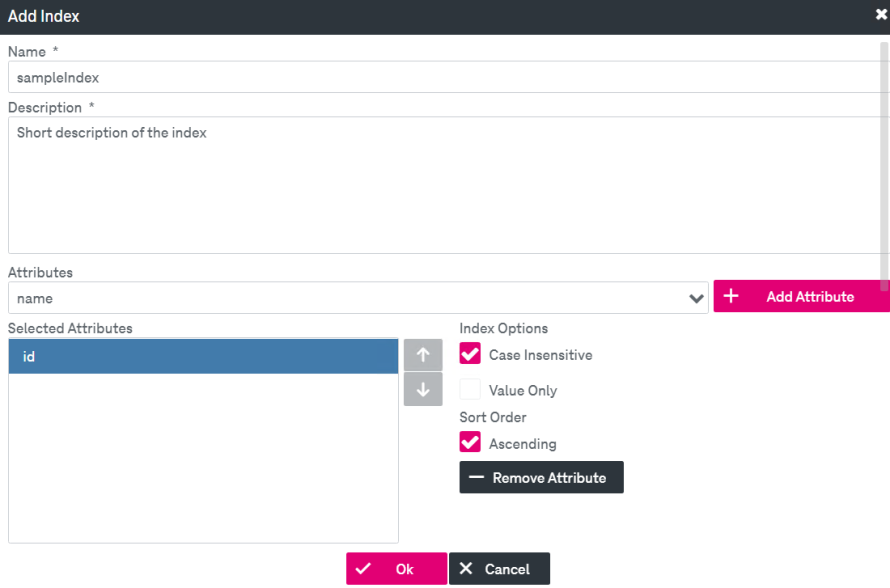
Figure 106: Document types – indices: add new index
-
Alternatively, click Copy Index to create a new index with the settings identical to the ones of the currently selected index.
-
Enter a Name and Description for the new index (these fields are mandatory).
-
Select attributes from the list and add to the index by clicking Add Attribute. Attributes will appear in the Selected Attributes box below. To delete a selected attribute from the list, click Remove Attribute.
-
You cannot create an index until you add at least one attribute to the index; the confirmation button will be enabled then.
-
Specify the index options. The following options are available:
-
Case Insensitive: Indexed values will be set to upper case internally.
Note that this option is inherited from the setting "Attribute search is case-insensitive" for the string attributes, see Search settings for more details.
-
Value Only: Causes namedValue indexes to only contain the value, not the name (applies only to namedValue types).
-
-
Specify the Sort Order for each selected attribute. You can select Ascending, otherwise descending sorting order is applied.
-
Click Ok. A new index will be displayed in the indexes list. The index configuration can be displayed in the expanded panel directly below the corresponding index line by clicking
 .
. -
Click Save.
To delete an index from the list:
-
On the Indices tab, select the index from the list, click Delete Index and confirm.
-
Click Save.