Marker configuration
In the markers tab, it is possible to define markers that will be displayed in the hit list depending on a single or multiple conditions. Document type markers will be stored as a part of the index configuration (for details on indexes see chapter Document type indices).
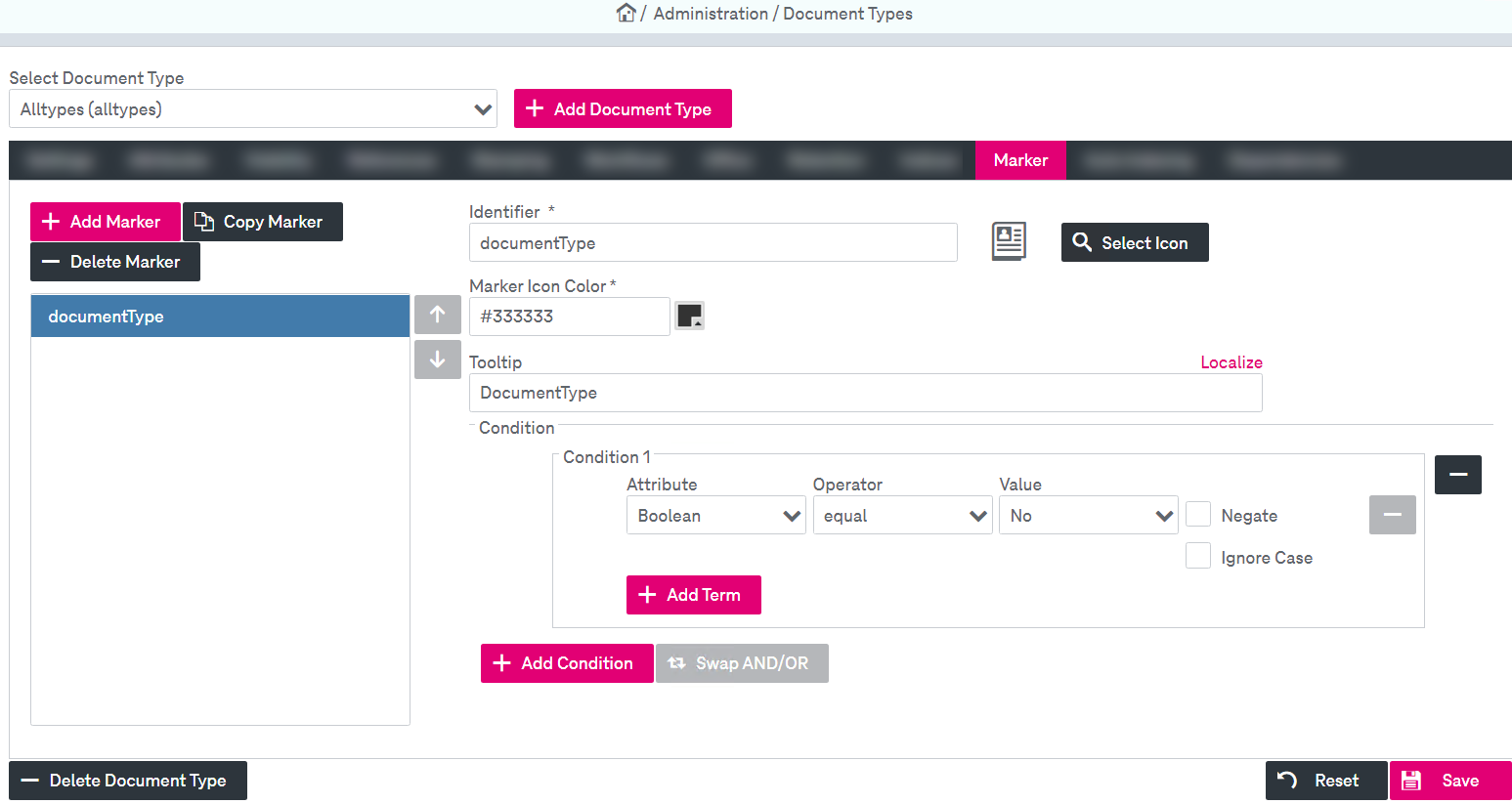
Figure 107: Document types – markers
You may perform the following actions with markers:
-
create
-
delete
To create a new marker
-
Click Add Marker.
-
Alternatively, click Copy Marker to create a new marker with the settings identical to the ones of the currently selected marker.
-
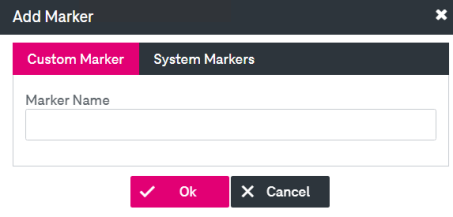
A creation dialog is displayed. Select type of marker you want to create and click the corresponding tab.
-
For Custom Marker enter Marker Name (this field is mandatory).
-
Click Ok and a new marker will appear in the list. The defined marker name will be prefilled in the field Identifier (mandatory) but you can change it.
-
To choose an icon that will be displayed with the corresponding documents in the hit list, click Select Icon. The following list will be displayed:
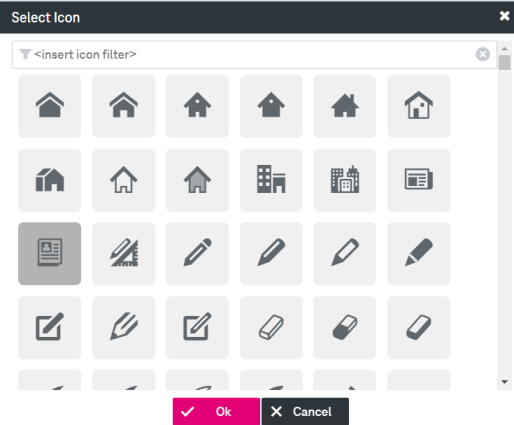
Figure 108: Document types – marker icons
-
Select the icon for the marker and click Ok.
-
By default the marker icon color is black. To customize the color, click the color picker next to the Marker Icon Color field.
The color palette will be displayed:
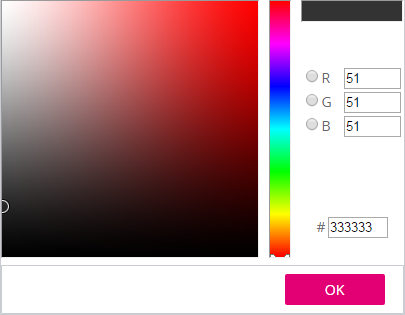
Figure 109: Document types – marker icon color
-
Select the color with the help of a mouse, specifying RGB color model or setting the color number and click Ok.
-
Specify a Tooltip for the corresponding marker. Optionally localize the tooltip content. For more details see chapter Localization.
-
Click Add Condition. The condition builder panel will be displayed:
-
Select an attribute of the specified document type from the list. Hidden attributes are not available.
-
Specify search criteria by choosing a comparison operator and setting your desired values.
The available comparison operators depend on the selected attribute type.
-
Optional:
-
 Select Placeholder
Click the icon to specify the placeholder for the attributes. The option is supported for the attribute types "date/ dateTime" and "string". Select the available options in the appeared window and click OK:
-
Negate
Select the box to apply the logical operator "not" to the whole condition. The negated condition effects the opposite truth value.
-
Ignore Case
By default the search is case-sensitive. Select the box to deactivate case-sensitive search.
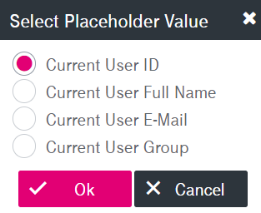
The specified value will be set as a placeholder for the corresponding attribute.
-
-
Optional: Add further search terms by clicking Add Term:
-
Terms can be connected by Boolean operators “and” (default) as well as “or”, so by default each term connected with “and” further reduces the result set. To change the connection click Swap AND/OR.
-
Connection operators are evaluated in order of appearance.
-
-
To delete the term, click the minus icon nearby.
-
Optional: Click Add Condition to specify additional conditions. Conditions can be connected by Boolean operators “or” (default) as well as “and”, so by default conditions connected by "or" retrieve results that match any condition or all of them. To change the connection click Swap AND/OR.
-
To delete the condition, click the minus icon nearby.
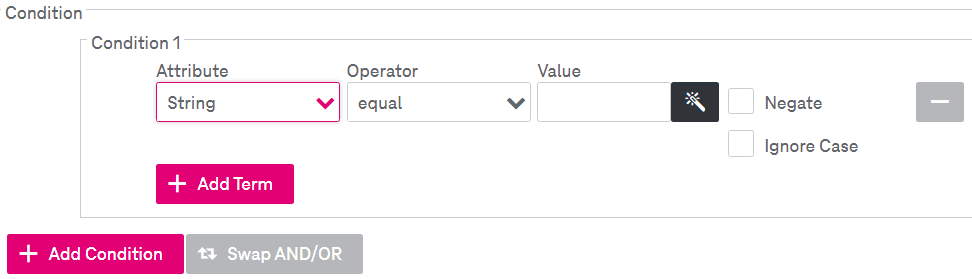
If the selected document type contains no attributes, the condition can not be configured and the functionality is disabled.
-
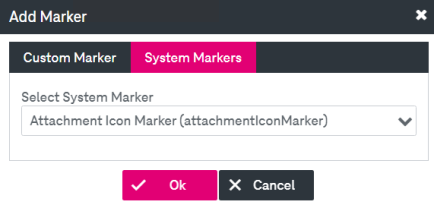
In the tab System Markers, select the type of the system marker from the list.
-
The following system marker types are available:
-
Attachment Icon Marker: specifies the file icon of the first attachment if the document has attachments.
-
Attachment Marker: is shown in case the document has attachments.
-
Attachment Protection Marker: indicates if a document has at least one protected attachment (for example by signature, timestamp or evidence record).
-
Child Documents Marker: is shown in case the document has linked child documents.
-
Lock Marker: is shown if the document is currently locked for editing. Details about the lock (username and time of creation) are displayed in a tooltip.
-
Workflow Marker: is shown in case the document is involved in document workflow (ImageMaster Business Process Management solution).
System markers are predefined. No conditions can be created for those markers. You can change the icon (disabled for the Attachment Icon Marker) and add a tooltip for a system marker. The procedure is the same as for the custom markers above.
-
-
Click Save.
To delete a marker from the list
-
On the Marker tab, select the marker from the list and click Delete Marker.
-
Confirm the deletion in the dialog.
-
Click Save.