Auto indexing
With the automated indexing feature it is possible to extract the attachment document metadata (author, title, comments, keywords, etc.) automatically and to fill ImageMaster document attributes with this extracted data. If auto indexing is configured for a document type (by your system administrator), this feature can become active if a single attachment file is added. For more details on configuring auto indexing see
Auto indexing is available when creating a new or editing an existing document.
To perform auto indexing
-
Add or select a single attachment in the attachments panel on document creation or when editing.
-
Click the icon with the magic wand to trigger the auto indexing:

If there is a conflict with auto indexing and already set attribute values, the existing attribute values will be overwritten by auto indexing.
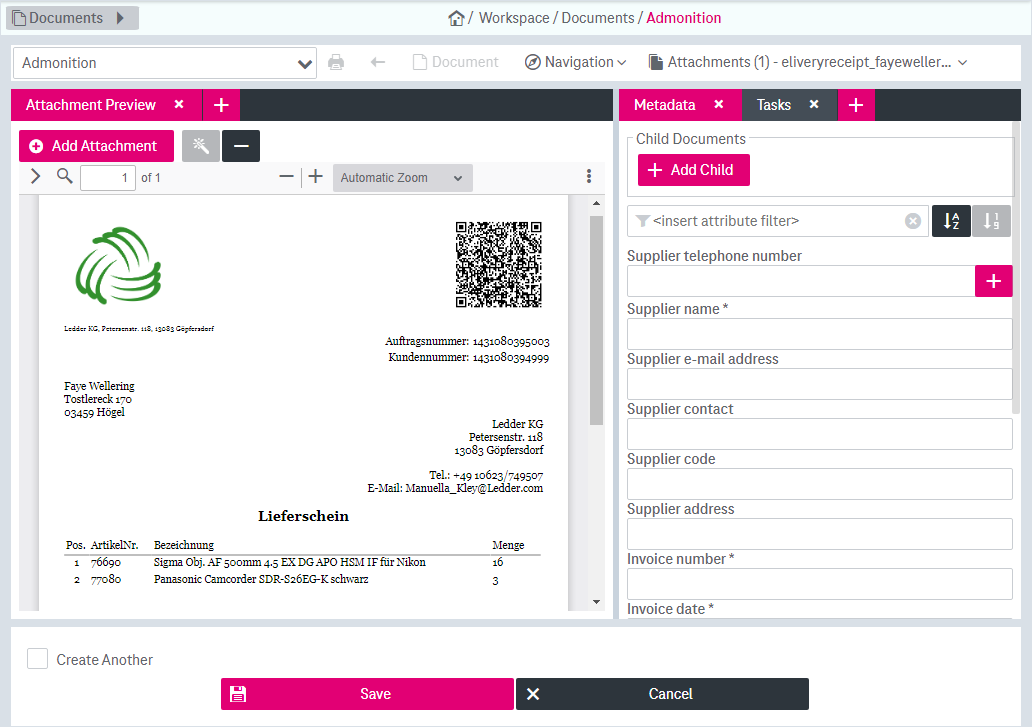
Figure 1175: Auto indexing on document creation
The attribute fields which could be identified in the attachment based on the central system configuration should now be filled.
After saving the changes, all automatically indexed attributes are marked with the label “Autoindexed” located next to the attribute name:
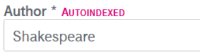
Figure 1176: Auto indexed attribute with label