To edit the user profile, click the link Profile Settings in the main navigation menu. As an alternative, expand the configuration menu with the spoke wheel, and select the link Profile Settings (see section Interactive and information elements in the upper functional bar).
Before you get access to the personal profile dialog, you must enter your password in a confirmation dialog:
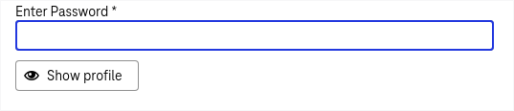
Figure 820: Enter user profile configuration
You can configure the following options in the user profile:
-
Basic Information: properties like the full name or the e-mail address. See chapter User profile for more details
-
Language Settings: language and regional properties. See chapter Change language for more details
-
General Authentication: the settings that are used for login to the system. See chapter General authentication for more details
-
Two Factor Authentication: authentication method which requires that you create verification codes via an application on a smartphone. See chapter Two-factor authentication for more details
-
Menu Shortcuts: configuration of shortcuts that give you quick access to different menu items. See chapter Menu shortcuts for more details
-
Workflow Settings: configuration of task notification schedule. See chapter Workflow settings for more details
Note that some configuration options (full name in the individual properties, general authentication and two-factor verification settings) can be invisible in the profile settings if passwords are configured to be kept externally. For more details see chapter Authentication settings in [UM AdminClient].