Operations with document types
With document type management, you can perform the following actions:
-
modify document type properties
-
add a document type
-
delete a document type
-
From the Select Document Type list, select one of the entries.
The properties displayed below are updated for the selected document.
-
Click a subtab to modify the properties of the document type.
For further details refer to the corresponding chapters related to the subtabs:
-
Click Save.
To add a new document type
-
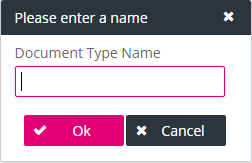
Click Add Document Type. The creation dialog is displayed.
-
Enter a unique name of the document type and click OK. The new document type appears as currently selected in the Select Document Type list.
The Settings subtab is displayed for the new entry, with the input fields Identifier, Display Name and Description filled with your input.
-
Optionally, adjust properties as desired (see section To modify a document type for details).
-
Click Save.
When you create a new document type, make sure to assign access to the new type for the desired roles (by default the access to all operations is “Undefined”); see chapter Roles management for details.
To delete a document type
-
In the Select Document Type list, select the entry to be deleted.
-
Click Delete Document Type and then click OK in the confirmation dialog. The entry disappears from the Select Document Type list.
-
Click Save.
If documents have been already stored for the selected document type, you will not be able to delete the document type and an error message will be displayed.